
Building
Learn how to build and customize avatars
The Builder is a powerful tool that allows you to create an Unity AssetBundle of your avatar for different platforms.
Open Builder
To build and customize your avatar, you need to open the Avatar Builder window.
You can do this by navigating to the top menu and selecting Nox > Avatars > Open Builder.
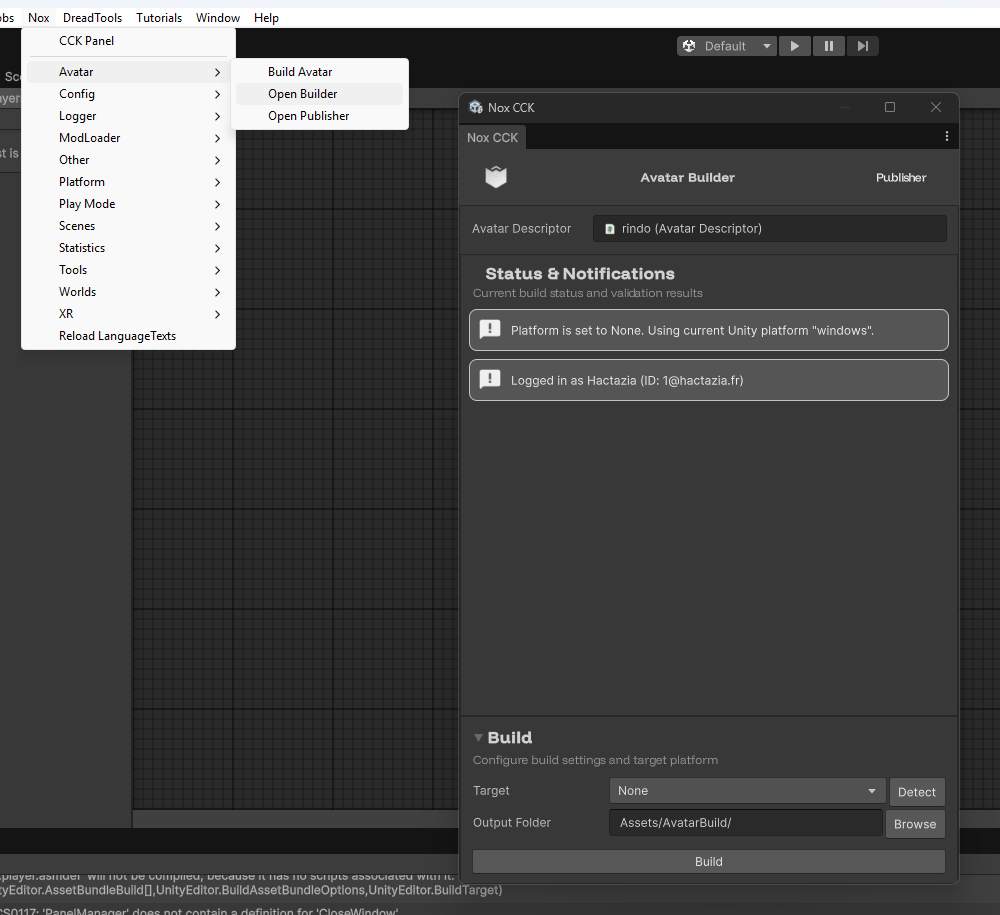
Status details
The Avatar Builder window provides important information about the current status of your avatar build. At the top of the window, you can see the following details:
Infos
It just indicates some information about the current avatar.
- User: Displays the currently logged-in Nox user account.
- Use Active Platform: Indicates whether the builder is set to use the active platform of the Unity project.
Is basically
Nonein the platform selection.
Warnings
These warnings indicate potential issues that may affect the avatar build process.
- No User: Indicates that you're not logged with a Nox user account. You need to be logged in to publish your avatar to the Nox platform.
- Platform Mismatch: Indicates that the selected platform for the avatar build does not match the active platform of the Unity project.
Errors
Errors indicate critical issues that must be resolved before building the avatar.
- No AvatarDescriptor: Indicates that no Avatar Descriptor component is found on the selected avatar. Is necessary to add it, see configuration guide.
- Multiple AvatarDescriptors: Indicates that multiple Avatar Descriptor components are found on the selected avatar. This case appears when you have more than one Avatar Descriptor on the same GameObject or in its children.
- Unsupported Platform: Indicates that the selected platform is not supported by the current Unity installation. See instructions to add platform here.
Platform Selection
The Avatar Builder supports multiple platforms.
To build for a specific platform, select it from the Platform dropdown menu.
The None option is used to select the current platform of the project.
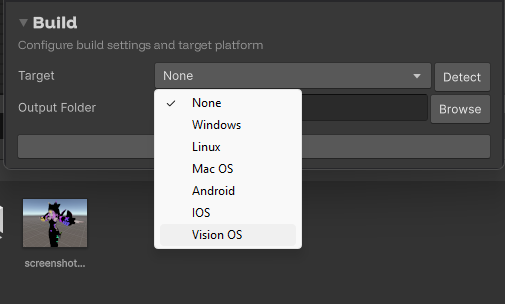
Is possible to have an error if the platform is not installed for Unity.
You can install it via the Unity Hub with instructions here.
Output folder
You can specify the output folder where the built AssetBundle will be saved.
Click on the Browse button to choose a directory.