
Overview
A comprehensive guides to using Nox effectively.
The guides is based on the Unity version of Nox. Some features may differ in other versions.
The Content Creation Kit (CCK) for Nox provides a set of tools and resources to help you create, customize, and publish content for the Nox platform.
And the Software Development Kit (SDK) allows developers to extend the functionality of Nox by creating mods.
Basically, the SDK regroups all interfaces to interact with all installed mods and the Nox runtime.
Also the CCK is used by users to create and manage their content.
Quick Links
Avatars
Learn how to use avatars in Nox to represent users visually.
Worlds
Discover how to create and manage virtual worlds in Nox.
Scripting
Get started with scripting in Nox to enhance interactivity.
Modding
Explore how to create and install mods for Nox.
Setup
These guides assume you have a working Nox development environment. If you haven't set up your environment yet, please follow the instructions below. Before all, ensure you have a good system requirements for Unity:
Install Unity
- Download and install Unity Hub from the official Unity website.
- Open Unity Hub and navigate to the "Installs" tab.
- Click on "Install Editor" button.
- Select the Unity version 6000.2.7f2 and click "Install".
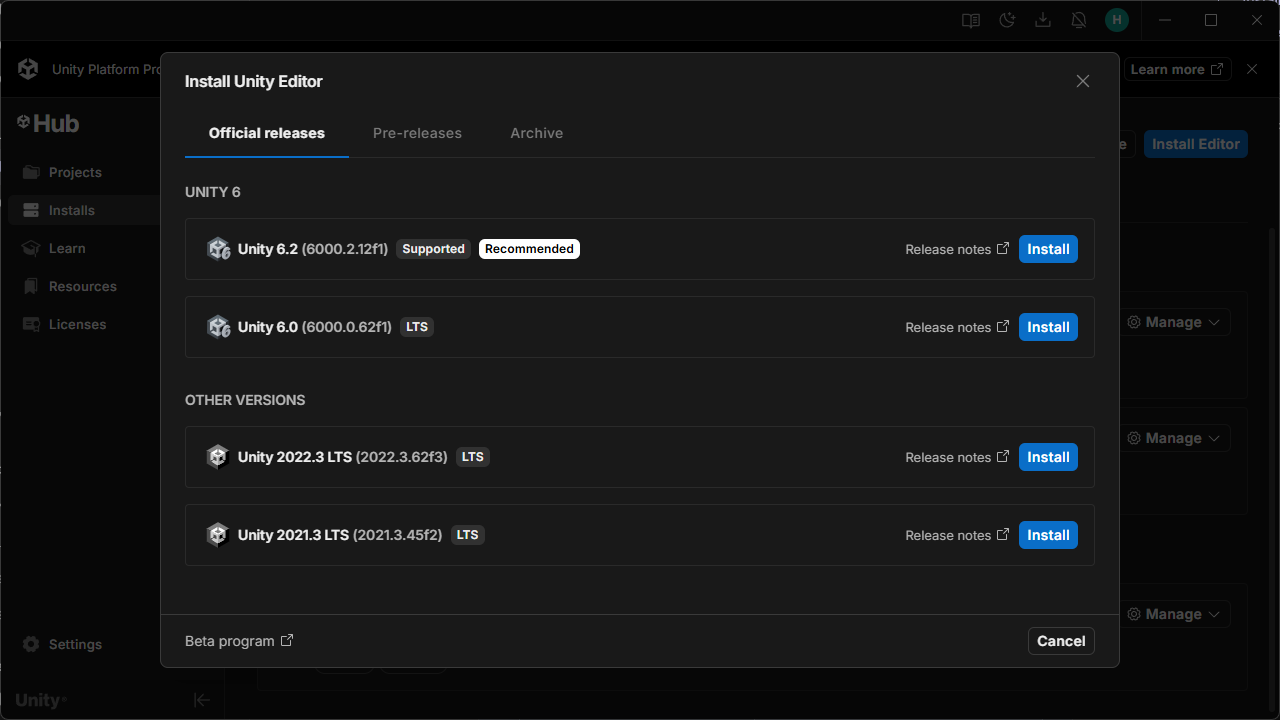
- During installation, make sure to include your target platform build support (e.g., Windows, macOS, Android) or the necessary modules for your development needs.
Clone the Repository
- Go to the Client Repository.
- Click on the "Code" button and select "Download ZIP".
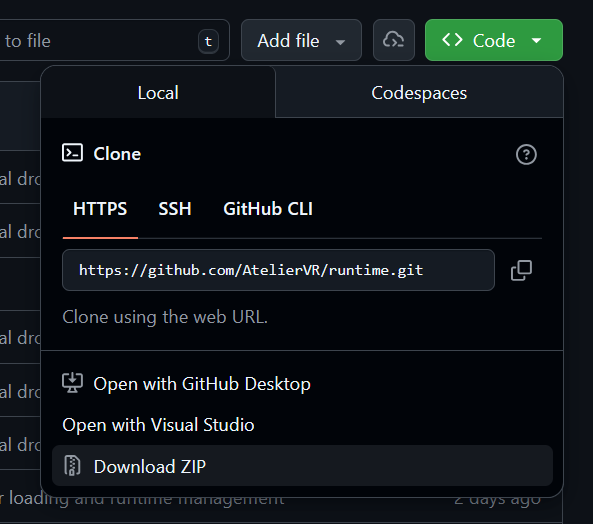
- Extract the downloaded ZIP file to your desired location.
Open the Project in Unity
- Open Unity Hub.
- Click on the "Projects" tab (if not already selected).
- Click on the "Add" button and "Add project from disk".
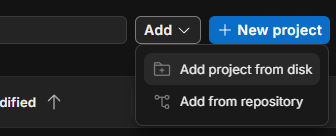
- Navigate to the location where you extracted the repository and select the project folder.
- Click "Select Folder" to add the project to Unity Hub.
- Click on the project in Unity Hub to open it in the Unity Editor.
(if prompted to upgrade the project, follow the instructions provided by Unity).
After Setup
You are now ready to explore the Nox guides (above) and start developing with Nox!
For any issues during setup, refer to the Unity Documentation or seek help from the Nox community.
Add Platform
If you need to add support for a specific platform (e.g., Android, iOS, WebGL), follow these steps:
- Open Unity Hub.
- Navigate to the "Installs" tab.
- Find your installed Unity version (e.g., 6000.2.7f2) and click on
Manage > Add Modules.
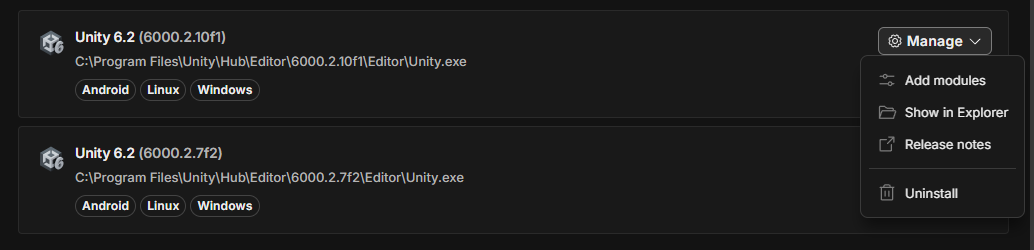
- And select the desired platform(s) to install.
- Click "Install" to add the selected platform support to your Unity installation.